Today, at a glance
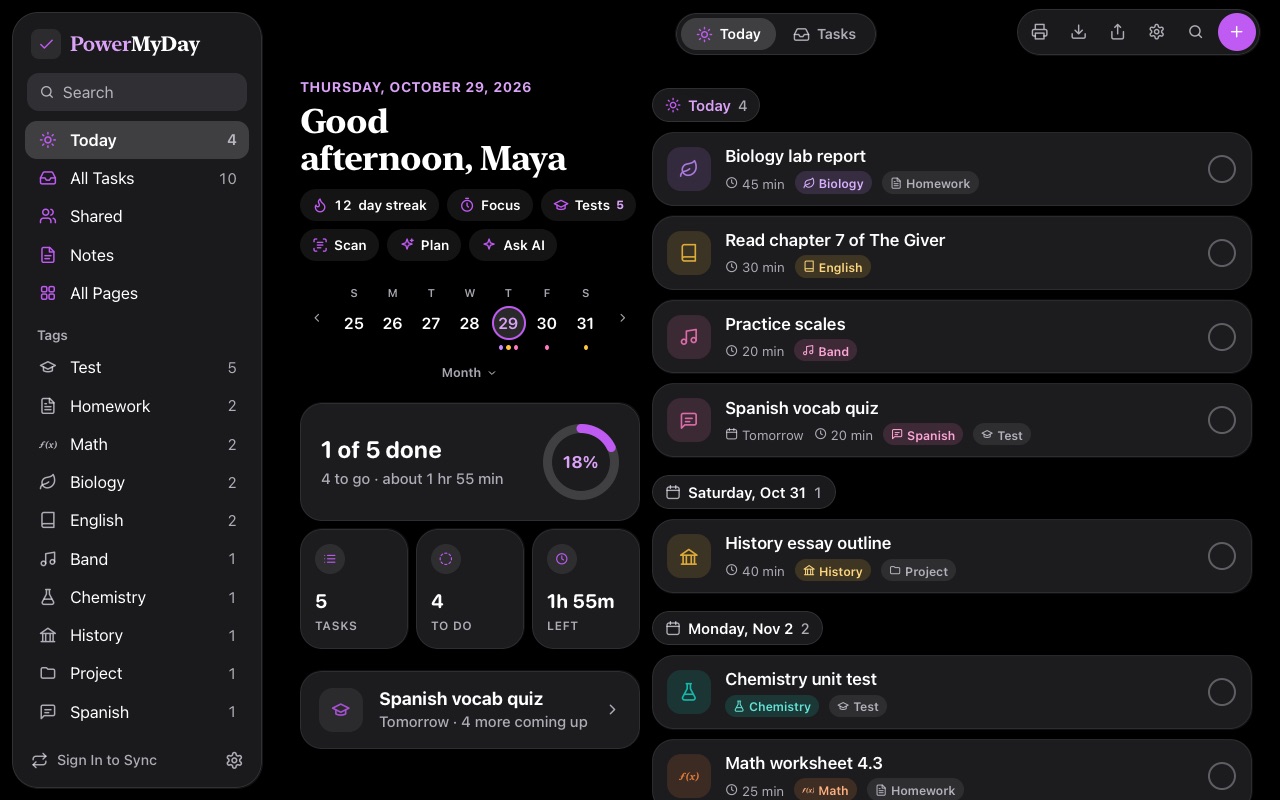
What's due, how long it all takes, and a ring that fills as you finish. Overdue things never get lost.
Free for students · No ads
Type math hw due fri 30m
and PowerMyDay files it under Math, puts it on Friday and plans 30 minutes for it. Today, your tests, your notes and your streak, in one calm place.
Already have a MyDay account? Sign in
Add a task
The day, the time and the class are filled in for you. Change anything with one tap.


Today: what's due, how long it takes, and how far along you are.
Three steps. The first one takes about ten seconds.

history essay due mon 45m
becomes a History task for Monday, planned for 45 minutes. Check it, change anything, and add it.

Today shows what's due and how long it all takes. With a free account, Plan My Day puts it in order with a time to start each one.

Finish everything due today and the ring fills up. Do it day after day to grow your streak and earn milestones.
Add a task in plain words, check off the rest of the day, and watch the ring fill.
Made for middle and high school: quick to add to, calm to look at, and honest about how much time tonight's homework takes.
What's due, how long it all takes, and a ring that fills as you finish. Overdue things never get lost.
Add a test and see a countdown, with study sessions spread over the days before it.
bio test thuHeadings, checklists and class colors, grouped by day and easy to search.
Finish what's due each day to grow your streak, with a focus timer for the hard ones.
Start a project, share a code with classmates, and check things off together.
Ask MyDay AI what to do first tonight, or have it break a big project into steps.
Notes, tests, group projects and your own colors, on a computer or your phone.



Your MyDay account works on the web here and in the MyDay apps, so your list is the same wherever you open it.
PowerMyDay is free to use, and it stays out of the way.
For parents and teachers
PowerMyDay helps middle and high school students see what's due and plan their evenings. Here's how it treats them and their information.
Can't find yours? Email support@powermyday.com.
Yes. There's nothing to buy and there are no ads. The one limit is MyDay AI on the website, which has a small daily allowance because every answer costs us money.
No. Choose Try It Without an Account and start typing: up to 25 tasks are kept in that browser.
A free account keeps your work safe if the browser is cleared, and adds syncing between devices, group projects and MyDay AI.
Your tasks and notes are yours. They're stored securely with Google Firebase, never sold, and never used for ads.
You can download all your data, or delete your account and everything in it, from Account at any time. The Terms list exactly what is kept to run PowerMyDay.
Yes, in any up-to-date browser on a phone, tablet or computer. On iPhone, open it in Safari, tap Share, then Add to Home Screen, and it opens like an app.
MyDay apps for iPhone, iPad and Mac are coming soon.
If you sign in with a school Google account, add a personal email and password in Account → Add Email & Password. It stays the same account, so you can still sign in after you leave the school.
You can also save a backup at any time from Settings → Your Name & Data → Export a Backup.
Yes. PowerMyDay and the MyDay apps use the same account, so when you sign in to an app, your tasks and notes are already there. A backup file from the website opens in the apps too.
No. If your teacher starts a class and you join it with their code, the teacher sees the name you use in PowerMyDay, and everyone in the class sees who is in it. That's all. Your tasks, notes and streak stay yours.
Assignments a teacher posts show up as a card. You choose whether to add each one to your list.
Sign in, open Classes (from All Pages, or powermyday.com/classes), and enter the code or open the invite link from your teacher. You can leave a class any time.
Make a teacher account at powermyday.com/teach. Teacher accounts are separate from student accounts, so use an email that isn't already a student's. Then start a class, share its code with your students, and post assignments.
Use Settings → Send Feedback, or email support@powermyday.com. Replies to your feedback show up in Messages.
Make a free account, type what's due, and see your whole evening at a glance.